Talk to Your Own Numbers: Connecting Claude or ChatGPT to Prosperify
The Founder, with AI, edited by hand ·
Updated 12 October 2026: step-by-step guides for Claude and ChatGPT, with pictures.
You can now connect Prosperify to the AI assistant you already use, like Claude or ChatGPT, and ask it about your own money in plain words. It can read your records, and when you ask it to, it can add and update them too. Below is why I built it, exactly how to set it up in both apps, and where the limits are.
Here's the thing that kept bugging me. Most of us now have an AI assistant open in a tab all day. It's brilliant at conversation, but it knows nothing about your money. Prosperify knows your money, but you have to open it and click around to get an answer. Connecting the two felt obvious. Instead of digging through screens, you just ask "What did I spend on groceries since January?" in the chat you already have open, and the answer comes back from your real numbers. I tested it with Claude while building it, and later with ChatGPT. Both worked better than I hoped.
So what can it actually do? It can read your net worth summary, your assets and liabilities, your income and expense entries, your goals and your budgets. It can also add and update all of those. Before it writes anything, the assistant is told to confirm the details with you first. Most assistant apps also ask your permission before an action runs, though that depends on your own settings there. What it can't do is delete. Removing a record always happens inside Prosperify, by you. I wanted the worst case of a misunderstanding to be a wrong entry you can fix, not something gone.
Step 1: copy the address from Prosperify
Everyone uses the same address. There's no personal link or key to look after. When you connect, Prosperify asks you to sign in, and that sign-in decides whose data the assistant sees. One front door, your own key card.
- Open Prosperify and sign in.
- Go to Settings and tap Connect to AI assistants. You'll also find it behind the plug icon on the AI Assistant page, and on the Ask page in Simple mode.
- Tap Copy.
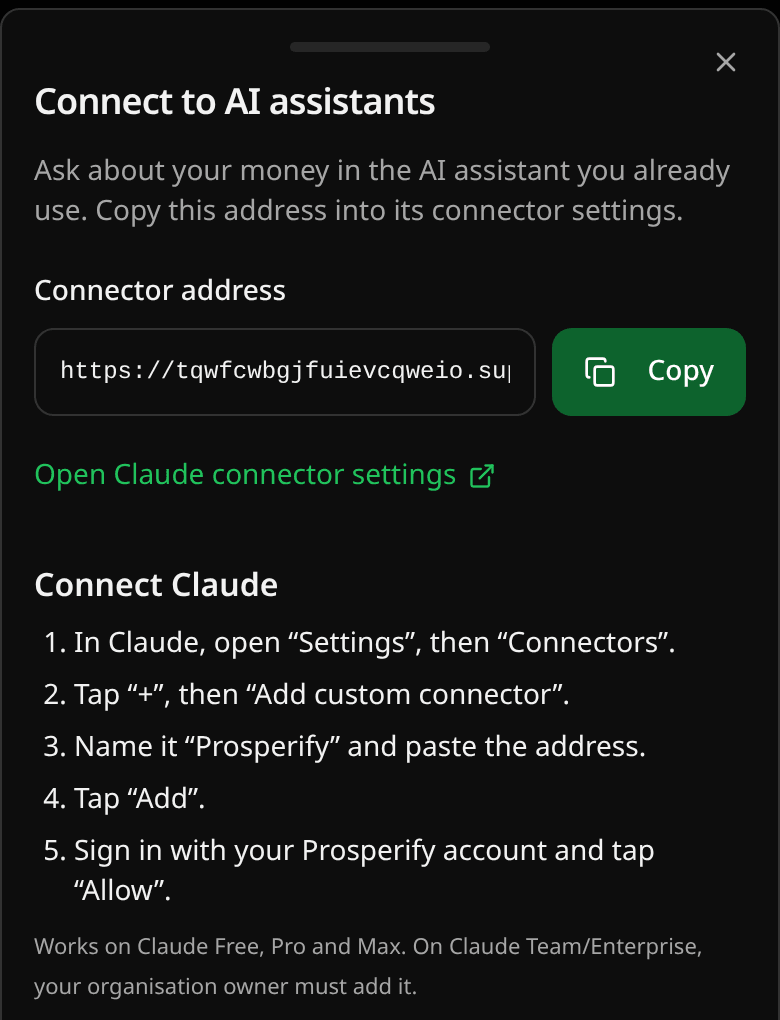
If you'd rather type it, this is the address: `https://tqwfcwbgjfuievcqweio.supabase.co/functions/v1/mcp`
Step 2a: connect Claude
This is easiest on claude.ai in a browser. It works on Claude Free, Pro and Max. On Team and Enterprise plans, your organisation owner has to add it first.
- Open Settings, then Connectors. The "Open Claude connector settings" link in the Prosperify panel takes you straight there.
- Click the "+" button and choose Add custom connector.
- Name it Prosperify, paste the address, and click Add.
- Click Connect. A Prosperify sign-in window opens.
- Sign in the way you normally do. You'll land on a consent screen that shows which app is asking and which Prosperify account you're signed in as. If it's the right account, approve.
- Start a new chat and ask "What's my net worth?" If Claude doesn't reach for Prosperify, check it's switched on in that chat's connector menu.
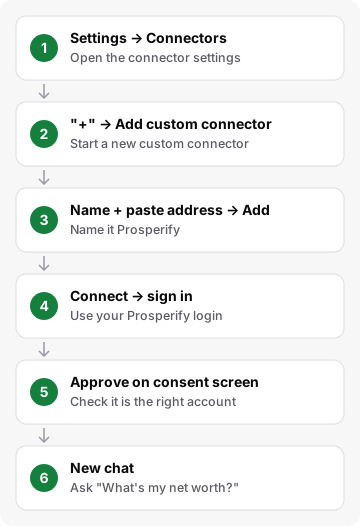
Claude moves its menus around now and then. If a label looks slightly different on your screen, go for the closest match.
Step 2b: connect ChatGPT
ChatGPT only allows this kind of connector with Developer mode switched on, and only on paid plans. OpenAI attaches a warning to Developer mode, and I think it's a fair one. It lets connected apps change data, and any assistant can misread a request. With Prosperify the worst case is a wrong entry you can fix, because it can't delete anything. Still, read what it's about to do before you say yes.
- On chatgpt.com, open Settings, then Apps.
- Open Advanced settings and switch on Developer mode.
- Back in Apps, click Create app.
- Name it Prosperify, paste the address, choose OAuth if it asks how to sign in, and create it.
- Sign in to Prosperify in the window that opens and approve on the consent screen.
- In a new chat, click "+", choose Developer mode, and select Prosperify. You may need to do this in each new chat.
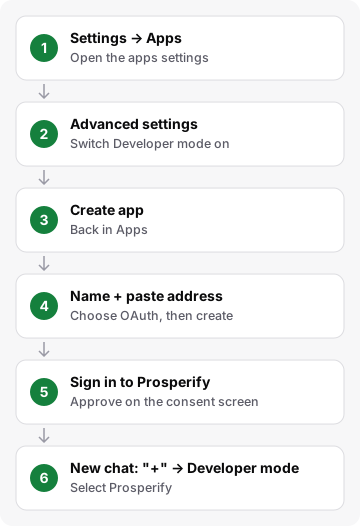
OpenAI has moved the Developer mode switch before. If it isn't under Apps, look under Settings, then Security.
Other assistants that support custom connectors use the same address and the same sign-in. The steps just vary by app. If yours doesn't offer custom connectors on your plan, there's nothing to fix on your side.
Your data
The assistant only ever sees your own records, nobody else's, and only after you approved it on that consent screen. You can disconnect it any time from your assistant's connector settings. Guest and demo sessions can't connect at all, by design. And the connection never hands over your password. It's a separate sign-in that you control.
The same rule as everywhere else in Prosperify applies here. It informs, it doesn't advise. The assistant is told to summarise and explain your data, not to tell you what to buy, sell or invest in, and not to guess at future returns. If you ask it what you should do, it should point you back to your own numbers instead. Your assistant is a separate product with its own rules, so treat what it says as a helpful reading of your data, not a verdict.
Some things I find myself asking: "Log a €42 dinner yesterday under Food." "How close am I to my holiday goal?" "Compare my spending this month with last month." "Update my car's value to €14,500." Small things, but it's oddly satisfying to keep your books tidy without leaving the conversation.
I built Prosperify so your money would feel less like a chore and more like something you understand. Being able to just ask is a nice step in that direction.
Related reading: our AI notice and financial disclaimer.